
Processing content that is too large
When an error message appears (e.g., "Document too large"), it's usually due to the context window.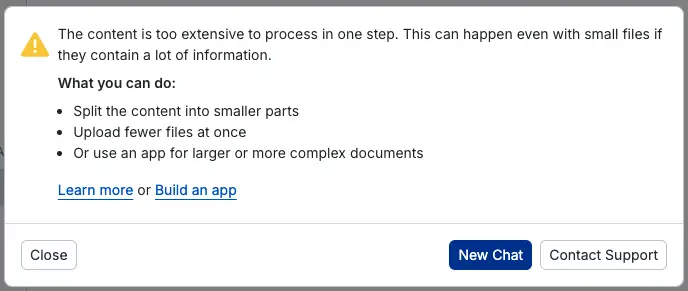
What is the Context Window?
In basebox, the amount of processable content is limited by what's called the context window. This technical limitation of the AI determines how much text can be analyzed simultaneously.
Important: This limitation differs from file size (e.g., MB) and is a current system constraint.
The Problem: "Document Too Large" Error Message
When this error message appears, it's usually due to reaching the context window limit, not the file size.
How to solve the problem:
Immediate solutions:
Split document - Divide the document into smaller sections
Select relevant content - Upload only the most important parts
Copy text - Copy specific text instead of uploading complete files
Understanding Context Window vs. File Size
The important difference:
The limitation is based on the amount of content (tokens), not on file size.
What this means in practice:
A small PDF (2 MB) can be too large if it contains a lot of text
A large Excel file (10 MB) can work if it has little text
Special file types:
Excel files:
Each individual cell is counted as content
Even empty cells can burden the limit
PDF files:
Can contain a lot of text even if they appear small
Particularly problematic with text-heavy documents
Reference Values for File Sizes
Typical guidelines (may vary):
PDF: approx. 50 pages
Excel: approx. 500 rows
Text: approx. 100,000 characters
⚠️ Important: These values are guidelines and can vary greatly depending on structure and content.
Optimizing Content for basebox
Before uploading:
Optimize Excel files:
Remove empty rows and columns
Delete unnecessary worksheets
Focus on relevant data
Optimize PDF files:
Extract only relevant pages
Use targeted text copy-paste instead of complete upload
General tips:
Work with multiple small uploads instead of one large file
Use only the content you actually need to analyze
Workarounds for Large Documents
When you need to process large documents:
Section-by-section analysis - Split the document and analyze each part separately
Targeted extraction - Copy only relevant text passages
Multiple chats - Use different chats for different document parts
Create summary - Have basebox summarize subsections
⚠️ Important Note: The "Document too large" error message usually refers not to the file size, but to the context window. Reducing the file size alone often does not solve the problem.
Still having problems with large documents? → Contact Support
